Zebra DS2278 Scanner Setup for Genius
Overview
This article describes how to set up a Genius site to use the Zebra DS2278 Handheld Barcode Scanner.
Programming Setup Barcodes
To configure the scanner for use with Genius iOS devices, scan the two barcodes below:
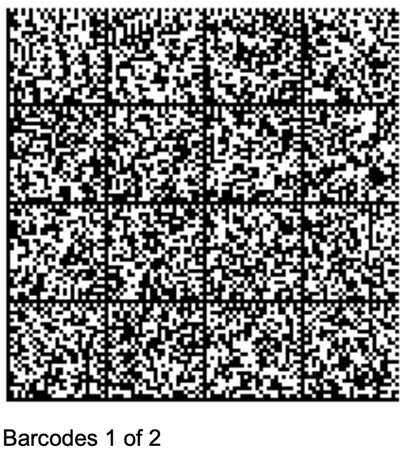
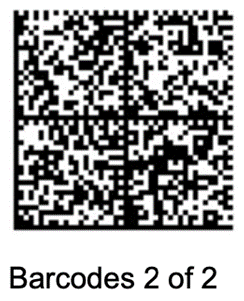
Pair the Scanner to the Device
- Once the Bluetooth interface is activated, press the button on the scanner to begin pairing with the tablet or computer.
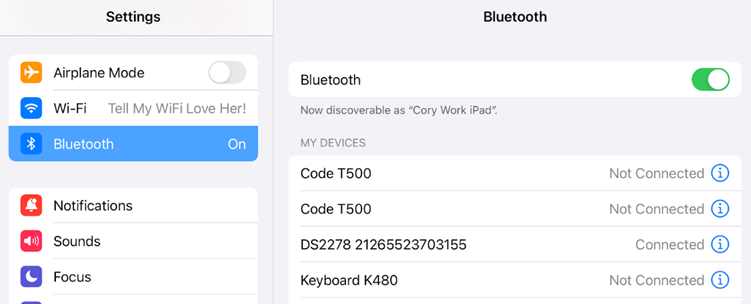
- On the tablet or computer, navigate to the Bluetooth settings ensure that Bluetooth is on.
- Tap the device named “DS2278 xxxxxxxxx”. Verify that it displays as Connected before proceeding to the next step.
Related Articles
Zebra DS2278 Scanner Setup for Heartland Restaurant
Overview This article describes how to set up a Heartland Restaurant site to use the Zebra DS2278 Handheld Barcode Scanner. Programming Setup Barcodes To configure the scanner for use with Heartland Restaurant iOS devices, scan the two barcodes ...
Uber Eats & DoorDash + Genius Restaurant
Good News. The days of manually entering DoorDash and Uber Eats orders at your POS are over. You can now have your own direct connection to to these delivery services through the Genius Restaurant integrated app. Seamlessly send orders directly to ...
How to load a Genius Menu Board
Setting up LG Business connect and Genius Menu Board Follow the steps below to properly connect and configure a new TV. Step 1: Connect the TV to WiFi Power on the TV. Navigate to Settings. Select Network. Connect the TV to the appropriate business ...
Peripherals Setup Guide
Please see attached PDF
DoorDash Setup Guide
Overview This article describes how to configure a Genius site to use the DoorDash delivery service. It assumes that DoorDash has been boarded and that the site already has configured menus, sales taxes, rooms, and Online Ordering. All steps within ...